My MacBook Wishlist

I wrote recently about purchasing a M4 Pro Mac mini for my family. Our next computer purchase is very likely to be a new laptop for me. I suspect that Apple will not build my ideal MacBook, but I thought it’d be fun to layout my constraints, and what I’d like in a new MacBook.

I currently have two Macs:

( 1 ) The base M1 Pro MacBook Pro with a binned GPU, 512 GB of storage, and 16 GBs of RAM

( 2 ) a M4 Pro Mac mini with 2 TB of storage and 64 GB of RAM

The MacBook Pro is largely used on the couch or in bed for some writing, reading, and social media. The M1 Pro is plenty fast for 95% of my use cases, however I am a little RAM staved on this device. In contrast, the Mac mini has been used for photo editing, and when I need additional monitors. A future MacBook for me needs to slot in nicely between those two: a clear upgrade over my M1 Pro, but not so performant that it eclipses the Mac mini.

I think it’s very likely that my next MacBook will be a MacBook Air. This will be a first for me. My first Mac was the 2008 Black-Mac when I went off to college, and ever since then I’ve had MacBook Pros. I needed that horsepower in graduate school, but I just don’t need it in a laptop today, especially when I have the Mac mini at my desk. I can afford the luxury of a thin and light laptop, without the penalty of poor and slow performance.

This means I need to consider what things I’d lose in a MacBook Air relative to my MacBook Pro, and if I’m willing to part with those. In my mind, the MacBook Pros have three large advantages over the MacBook Air line: ( 1 ) the ports ( 2 ) the SoC and ( 3 ) the display. 

Ports

The current MacBook Air has two Thunderbolt 4 ports and a MagSafe port for charging, meaning I’d lose the SD card reader of my current laptop, and the HDMI port. Thats fine. I have used those ports maybe less than a dozen times total.

Truthfully, the biggest thing I’ll miss are Thunderbolt ports on either side. Having the ability to change my laptop from either the left or right side has been great. I’ll miss that.

SoC
CleanShot 2025-11-11 at 15.29.30.

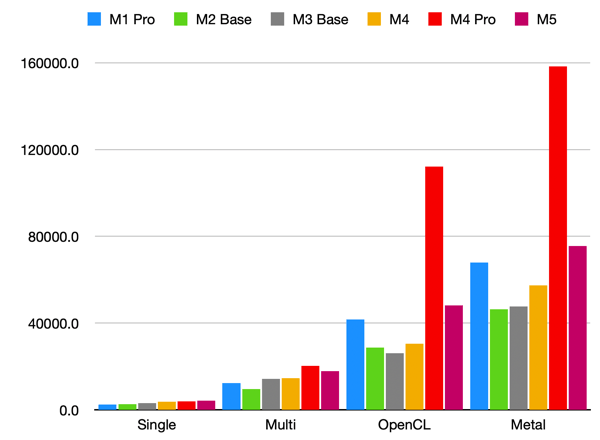
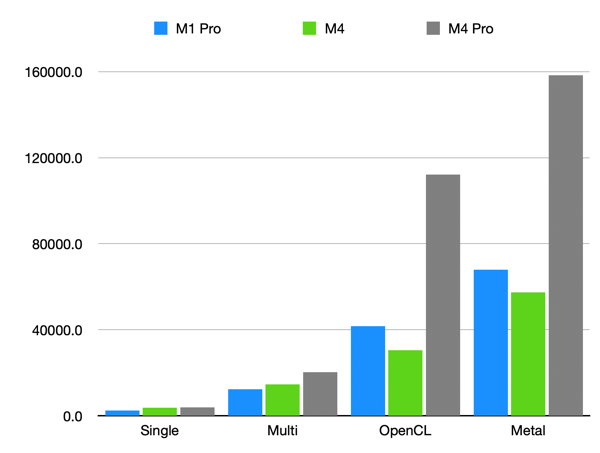
According to GeekBench scores, the last-generation M4 MacBooks had reached parity with my M1 Pro, and the M5 has now surpassed the M1 Pro in both Single-Core, Multi-Core, and GPU performance. The most CPU/GPU intensive thing I do is some light photo editing, and even then I’m limited by 16GB of RAM on my MacBook Pro. Any M#-no-adjective laptop I buy from here on out will be an upgrade for me. Excellent.

On the other hand, this presents a timeline in the other direction: if M-series chips continue to progress at this rate, roughly four generations beyond the M4 Pro, the M#-no-adjective line will surpass its performance. Now, that might be okay for my purposes. I’m very unlikely to get a 64 GB of RAM on a laptop, but it does suggest that I should target the M7, M8, or M9 generation.

Display

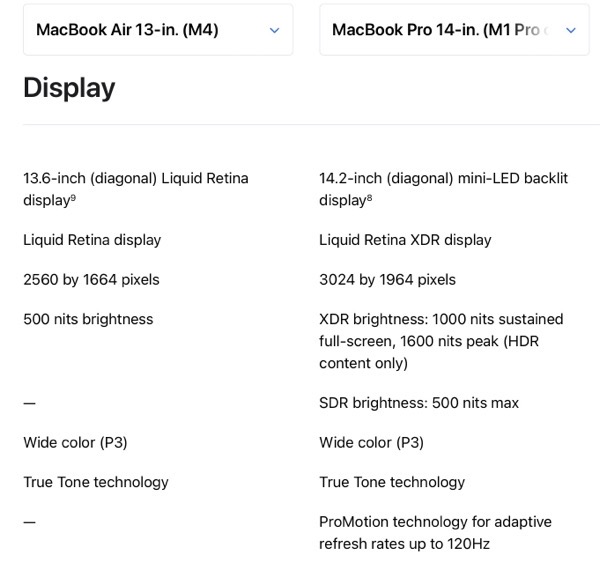
Below is Apple’s summary of the displays on the current 13-inch MacBook Air versus my 14-inch MacBook Pro. 
CleanShot 2025-11-11 at 12.08.01@2x.

The size change I’m perfectly fine with, I think going slightly smaller (in all dimensions) and losing some weight would be nice. However, the HDR, and ProMotion are features I do not want to lose. I think theres two reasons to be hopeful in this regard:

( 1 ) The recently-released iPhone 17 is the first base-iPhone to have a ProMotion Screen, and the new iPhone Air has it as well. That is, Apple clearly doesn’t see 120 Hz refresh rates as a “Pro” feature any longer.

( 2 ) The current round of rumors regarding Mac laptops are that the M6 MacBook Pros are likely to get an OLED display in late 2026 or 2027. That allows Apple to move the existing displays on the MacBook Pros down to the Air line, and still have some product differentiation against the Pro line.

Let’s hope this pans out, and the MacBook Airs get a significant display upgrade somewhere around the M7 release.

Colors

I would really love to see Apple bring the colors from the existing iMac line-up to the air. Just, please, keep the existing black bezel and keyboard of the existing Air. BasicAppleGuy mocked up some examples for April Fool’s day last year. They look fun! Imagine that – a fun computer.

Cellular

I’ve had a cellular antenna in my iPad since 2020, and I love  it when I’m traveling. I’ve been using my iPad less and less over the last year or so, and I expect that to continue. I would really love this feature to just hop over to the MacBook line-up. The one feature Apple would need to build into macOS is something like TripMode, which I’ve written about before. Similar features have been baked-in to iPhones and iPads since day one – how hard could it be?

Nano-Texture Glass

Apple recently started including Nano-Texture glass for an anti-reflective matte finish on the MacBook Pro line. I’d love this on a future MacBook Air as well.

My Ideal MacBook

As I said from the outset, I think a lot of this is unlikely to happen. However, I think it’s very likely that Apple releases an M8 with performance somewhere between the M1 Pro and the M4 Pro, and thats probably going to be how I identify the right time to upgrade my laptop. Although, the rumor mill will likely guide whether or not I pull the trigger. I’d hate to upgrade only for a cellular or a better display to get released in the year or two after I’ve made the purchase. 

One final unlikely thought: what if the aforementioned MacBook Pro upgrade to OLED display also includes a considerable slimming-down of the device as well? That might be tempting.
David Pierce on the iPad at 10

David Pierce writing at The Verge:

I’ve been using the latest Pro as my go-to laptop for a few weeks now, just to see what all this change adds up to, and I’m shocked at how close this thing is to a truly all-purpose computer. There are the obvious things, like built-in cellular connectivity and the Apple Pencil, that give the Pro powers the Mac doesn’t have. The mix of touch and trackpad is genuinely great, too; I’m constantly back and forth to the screen, scrolling or swiping with the trackpad but doing finer and more complex things with my hands. And there’s just no replacing the fact that you can turn on a movie, pick up the screen, and flop back on the couch. Add in the solid speakers, good camera, and great battery life, and there’s a lot I like about life with the iPad. If you do creative work of any kind — and more and more people do — it’s a uniquely useful device.

Which makes it all the more annoying every time you run into some totally unnecessary system limitation. There are still a lot of those. Apple’s laptops are allowed to run any app, not just the ones in the App Store. They can interact with more accessories. They can access virtually everything about the system through the Terminal. They can run better browsers. Utility apps I rely on to make my computing life easier, like Raycast and Better Touch Tool, just don’t exist the same way on the iPad. There’s almost nothing the Mac straight-up won’t let you do, but the iPad is full of limitations. They’ve been there for so long, and are so glaring, that we’ve been mad about them in reviews since at least 2018. Apple saw them as a feature, not a bug.

Even with iPadOS 26, I still find multitasking with the iPad hugely cumbersome, and I just think to myself “ugh, I should just grab my Mac.” I have a iPad Air with the A14 SoC, the last iPad Air before the transition to M-series chips. 5+ years later, it’s fine. It does the multi-tasking things in iPad OS 26. However, in the last 6 months, I’ve found myself reliably just using my M1 Pro MacBook Pro. Perhaps it’s for the larger real estate; perhaps it’s that the M1 Pro has held up better than the A14 over time. In any case, the I just consistently feel that I’m hitting walls on that iPad.

Boring Is What We Wanted – 512 Pixels

Stephen Hackett, writing at 512 Pixels, with a wonderful retort to the conventional wisdom that the M5 Macs released last week were “boring”. Good! The Mac regularly getting attention and regularly building ~10-15% improvements year over year means that any time you need to upgrade a Mac (whether by choice or not), you’re going to get something better than you last had.

Unsaid in his post is how impressive this collaboration between Apple and TMSC is. It’s not *just* Apple that are squeezing regular YoY upgrades. TMSC is similarly executing.

My New-To-Me Mac Mini

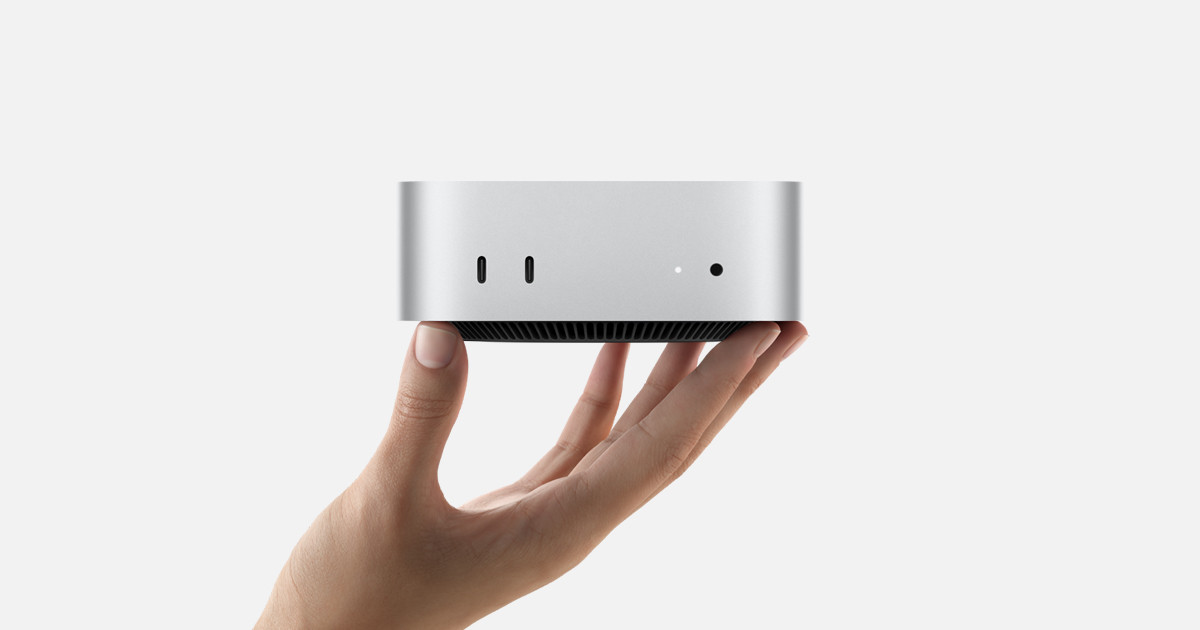
Buy Mac mini - Apple

I had been kicking around the idea of a “Family” Mac for a few reasons:

( 1 ) I’ve wanted some central Mac that could house my entire photo library and back it up to my NAS

( 2 ) A family member has a Windows laptop is that is nearly dead, and is Mac-curious. There is a high likelihood that I will be the tech support for their new laptop, so I have a vested interested in ensuring they move to a Mac

(3) My wife really loves her M4 iPad Pro, so much so that she hardly uses her MacBook anymore. She does need a Mac from time to time, but it is very infrequent.

This provided an interesting opportunity: give my wife’s MacBook Pro to the Mac-curious family member, and buy us a Mac mini for the family. This way, I could set up my wife’s iPad to access the Mac mini, so that she would have access to a Mac when she needs it. I would also have a desktop Mac I could use when at my desk, or for any automations, and still have my M1 Pro MacBook Pro for while I’m around the house or on the go.

The introductory model for the Mac mini has 256 GB storage, 16 GB RAM, and an M4, and while it’s a bargain for its $599 price, it is insufficient for my needs:

( 1 ) I wanted a new Mac that was clearly an upgrade relative to my existing M1 pro MacBook Pro (otherwise, why would I use it?)

( 2 ) I needed enough internal storage to house all my data and photos.

( 3 ) I wanted enough RAM that I wouldn’t ever push the device into using swap memory.

Processor

The Mac mini can be configured with either an M4 or an M4 Pro chip. To decide between the two, I compared GeekBench 6 scores back to my M1 Pro MacBook Pro:

CleanShot 2025-11-11 at 14.30.21.

M4 Pro it would be.

Storage:

I have about 1.1 TB of data in iCloud between my documents, back-ups, and photos. Upgrading to a 2 TB internal drive was a no-brainer, especially when the price gap between 2 TB and 4 TB is an additional $600.

RAM:

This is where I splurged. I was, and am, tired of being RAM limited on my laptop. I usually only hit a clear slow-down when I’m editing photos on my MacBook Pro, but I regularly see it using swap. With an M4 Pro, you have choices between 24, 48, and 64 GBs of RAM. I wanted to at least double the RAM on my laptop, but ideally this machine will last us 5+ years and not start moving to swap memory. 64 GB – no regrets.

Accessories:

I wanted a new monitor to go with the new desktop. At work, I have three monitors: one positioned centrally in landscape, flanked by two portrait monitors on either side. I already had two 27” HP Z27n monitors, and woot.com had a great sale on a Samsung M80 32” monitor. I’ve just re-created my set-up at work at home. This monitor technically falls into “The Bad Zone” for Mac monitors, but it’s fine.

Lastly, I set up Screens Connect and bought a subscription to Screens 5 for the family. This way both my wife and I can access the Mac mini remotely from our preferred devices.

I did hunt for a refurbished model on Apples site for the better part of a month, and I bought the configuration described above: M4 Pro, 2 TB SSD, 64 GB of RAM. The thing is so fast. I’ve seldom seen my memory usage above 20% so far, with the lone exception being when I selected every application in my application folder and hit enter.

My favorite Mac utilities

My menu bar. From left to right Network Preferences, Time Machine, Sound Preferences, FruitJuice, Date & Time Preferences, User & Group Preferences, Spotlight, Bartender 3, Notification Center
My Bartender menu bar. From left to right, Greenshot, TripMode, BetterSnapTool, ChatMate For Facebook, GIF Keyboard, Amphetamine, Screens Connect, Night Owl, Tweetbot, Turbo Boost Switcher Pro, Bluetooth Preferences, 1Password, Airmail, Keyboard Preferences, Backblaze, Energy Saver Preferences, Siri, Display Preferences, Bartender, Notification Center


Its been a while since I’ve written on here, and I’ve had a few friends lately ask about utilities I run on my Mac, so I thought I’d share some of my favorites. These aren’t all of them, but these are my favorites.

Bartender 3, $15
Bartender 3 is what make this list work. Bartender hides all of the utilities I run in the background, so that I don’t have to see them. ⌥+Space later, and all of the utilities running in the background are revealed.

Greenshot, $2
Greenshot is a great and easy utility for screenshots, and there is a Mac and Windows version, which is great is you a Mac at home and Windows at work, like me. I’ve got mine set up to bring up the screenshot crosshairs with F1, then send to screenshot to my clipboard. I even used it to take the screenshots used above!

Tripmode, $8
Tripmode is a utility to modulate data use when tethered to a smartphone. The Mac makes it very easy to connect to a smartphone for data when traveling, but none of the apps on your computer (like Dropbox, iCloud, Google Drive, etc.) know that you’re on a network with a data cap. Tripmode solves this by allowing the user to determine which apps can use data, and these settings can be network-specific.

BetterSnapTool, $3
BetterSnapTool emulates the Windows 7 feature of snapping windows to one side of a screen. Although the Mac now has a native split screen mode, this wasn’t always the case, and BetterSnapTool brought this useful functionality to the Mac with lots of customization. I use it to simply split my screen for a moment, but if I’ll be using a split screen for a while, I’ll typically use the native Mac feature.

Amphetamine, Free
Ever need your laptop to finish something and not go to sleep. Well, Amphetamine will keep you awake.

Turbo Boost Switcher Pro, $10
I got this one from a great episode for ATP. Basically, if I’m using my laptop in “laptop” mode, I want great battery life and I’m unlikely to be doing anything computationally expensive. If I’m sitting at my desk and plugged in, I want my laptop to be as fast as possible. Turbo Boost Switcher Pro does this by enabling and disabling Turbo Boost, which pushes your CPU past its base clock speed at the expense of battery life, based on whether your computer is plugged in or not. Better battery life when using the battery, better functionality when on power. Marco Arment has a good post on this too.

Parallels, $80
Okay, Parallels isn’t really a utility, but I think its at least worth mentioning. Parallels is a Virtual Machine software, which means you can other operating systems within Parallels on your Mac. This is another indispensable app that I need from time to time, when I need to run a Windows specific application. Parallels gets an upgrade every year, and I’ve sort of put myself on an every-other year upgrade cycle. Those seem to have big benefits in how resource intensive Parallels can be.

CleanMyMac X, $40
CleanMyMac X will, hold on for this one, clean up your Mac. Dump your RAM, clean out Caches, empty your trash, etc., all in one fell swoop.

Screens Connect, Free (iOS counterpart is $20)
Screens is a great iOS app that I use to connect back to my Mac. Screens Connect is the Mac end that lets my access my Mac from my iPhone or iPad when I’m out and about.

1Password, $5/month for five accounts
I love 1Password. 1Password is a password storage app, which keeps track of all your passwords and will generate random passwords for all your accounts, on all of your devices. Theres a version of 1Password for every operating system. They even have a feature to inform you if a website where. you have an account is hacked! This is another one that is absolutely indispensable for me.

Backblaze, $50/machine/year
Back-ups are a part of any healthy digital life. Backblaze will back up as much as you can give it for $50 a year. This is mostly for a worst case scenario. If my laptop and my local backup were to fail, all my data is also stored at Backblaze.

Time Machine, Free
This is the only 1st party utility on this list, and it’s for a good reason. Time Machine is great, simple, and reliable back up solution for the Mac. At a minimum, you can plug in a hard drive and it’ll back up everything new. At its best, you can point it to a NAS and back up wirelessly every hour.

FruitJuice, $10
FruitJuice is just a handy utility to track battery health. It’ll send little push notifications asking you to unplug your laptop from time to time, and with updates for how much battery life you have. In addition, it tracks how many cycles your battery has, and its overall health.

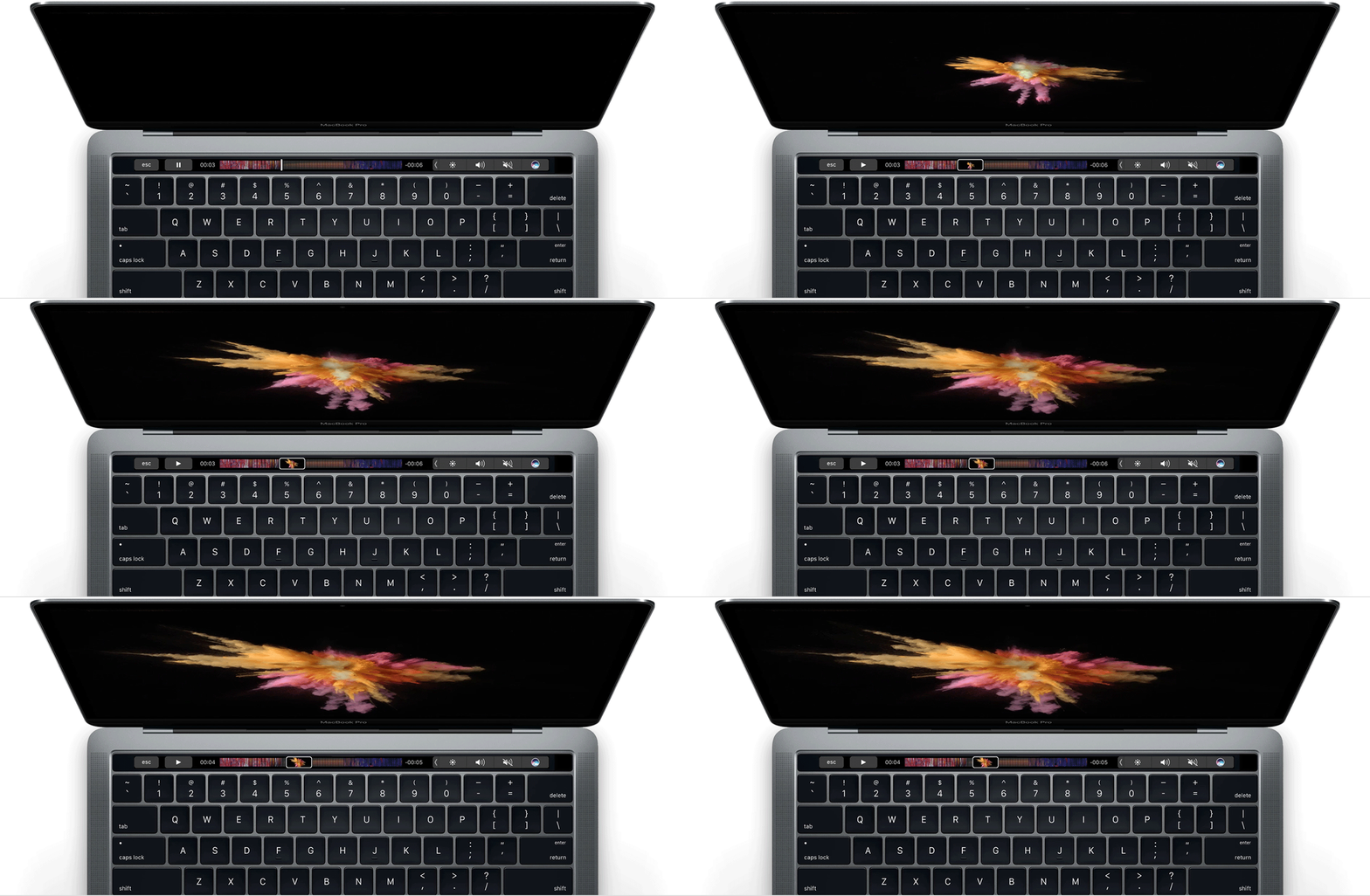
Thoughts on the MacBook Pro TouchBar


Now that the TouchBar MacBook Pro has been out for a year or so, it seems the consensus has been that power users aren’t wild about this model of MacBook Pro for several reasons: lack of ports, the luke-warm response to the Touch Bar, and the keyboard issues plaguing consumers.

Although, I don’t have an issue with the keyboard on the newest MacBook Pros, I do think the Touch Bar isn’t all Apple thought it was going to be. In truth, I bought the MacBook Pro with Touch Bar over the MacBook Escape due to the better processor – gaining the Touch Bar was just a fun addition. Although it is fun to use, it just isn’t a fast or easy thing to use because it just isn’t that useful. It doesn’t add anything to Mac that it absolutely couldn’t do before. This is why Mac power users just really haven’t embraced it. Alternatively, the Touch Bar really does increase the price on an already expensive computer, which means most casual Mac users will either get the MacBook or MacBook Escape.

I think its also worth stating that I think Apple made a good move not making a touch screen Mac. I never want, or need, to touch the screen on my work PC. I wish I didn’t have to touch my iPad when I’m using it with a keyboard. This image says it all:


Given the timid reception to the Touch Bar, I think its clear that Apple put this thing out because they felt they had to. They thought that since basically every PC now comes with a touch screen, and they knew they didn’t want a touch screen on the Mac, that they should “Think Different”. They shouldn’t have. They should have just made a great MacBook.

However, the Touch Bar did come one big upside – Touch ID. Touch ID on the Mac is great. However, it looks like Touch ID is being phased out on iPhones.

Leading up to the iPhone X announcement in September, rumors were swirling about whether or not Apple was doing away entirely with Touch ID, put it on the back of the phone, or somehow embed the technology under the screen of the phone. I, for one, thought there was no way they were getting rid of Touch ID. This was for three main reasons:

  1. Apple had built Apple Pay on Touch ID as its main way to authenticate payments. Banks and credit card companies are bought into this technology, and more and more companies are starting to support Apply Pay every month. Changing how that authenticates and getting everyone to agree to the change feels like a heavy lift.
  2. Services, like Apply Pay, have been increasing as a percentage of Apple’s revenue over the last several quarters.
  3. Apply just released the MacBook Pros with the Touch Bar. They had finally brought this technology to every major device category they sell – iPhones, iPads, and now the Mac. The line up was unified. I didn’t think they would mess with that.

Boy, was I wrong.

This has got me thinking about the future of Touch ID on all Apple devices. Now that the iPhone has migrated from Touch ID to Face ID, its not a huge jump to see the next iPad (or maybe the one after that) losing Touch ID and gaining Face ID. In fact, people are already making mock-ups

But what of the Mac? If the Touch Bar isn’t the big hit Apple thought it would be, and they’re migrating out Touch ID, is the Touch Bar going to be left behind when the Mac eventually moves to Face ID? After all, even Apple’s latest-and-greatest iMac Pro isn’t shipping with a Touch Bar. I think at a minimum, the Touch Bar will remain for however long apple uses this body type, but I wonder if the internal pressure to transition the Mac to Face ID combined with the keyboard problems plaguing consumers will push Apple to abandon this MacBook Pro style earlier rather than later.